Antigravity IDE用のCLIツールをインストールする
Googleが展開する「Antigravity」シリーズは、2026年5月のバージョン2.0へのメジャーアップデートに伴い、製品の位置づけが大きく整理されました。「Antigravity」はAIエージェントを指揮するプラットフォーム全体(またはその中核アプリ)であり、「Antigravity IDE」はその中の一要素である“コード編集用エディタ”という位置づけです。
これを「新旧のツール名・CLIコマンド名」の観点で整理すると以下になります。
|
従来 |
従来のCLI |
今後 |
今後のCLI |
| エディタ |
Antigravity |
agy |
Antigravity IDE |
agy-ide |
| AIエージェント |
- |
- |
Antigravity |
agy |
私の環境ではAntigravity 2.0をインストールした結果、CLIからAntigravity IDEを起動するには「agy-ideコマンドを利用可能な状態にする」必要がありました。今回はその際の作業内容をメモしておきます。私の場合は「agy-ideコマンドは存在しているがPATHが通っていない」状態になっていました。
検証環境
| 対象 |
バージョン |
| macOS |
Tahoe 26.5 |
| Antigravity IDE |
2.0.3 |
agy-ideをインストールする(インストールされていた)
Antigravity IDE上でCmd+Shift+Pを押し、コマンドパレットからShell command: install agy-ide command in PATHを選択します。
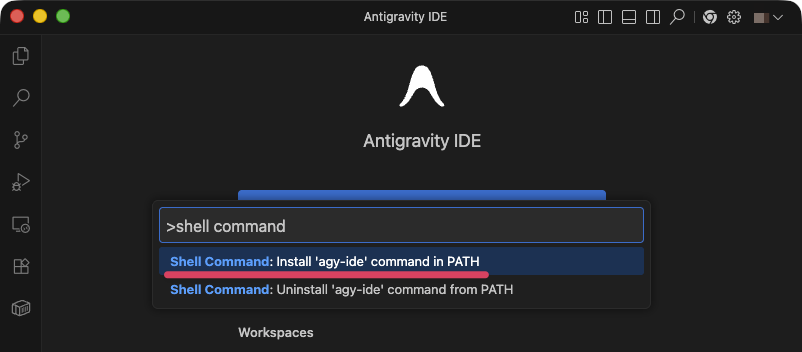
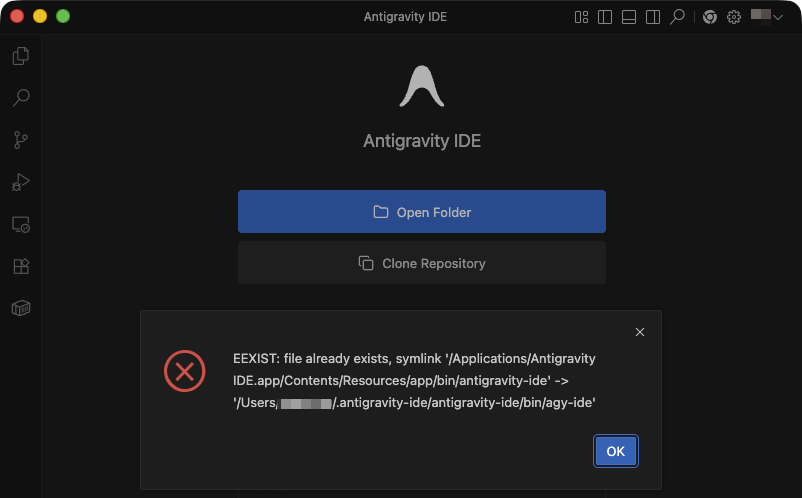
しかし、私の環境では既にインストール済みのようです。
EEXIST: file already exists, symlink '/Applications/Antigravity IDE.app/Contents/Resources/app/bin/antigravity-ide' -> '/Users/USERNAME/.antigravity-ide/antigravity-ide/bin/agy-ide'
agy-ideへPATHを通す
私の環境ではagy-ideにPATHが通っていないようです。
% which agy-ide
agy-ide not found
~/.zshrcなどにagy-ideへのPATHを追加します。
export PATH="$PATH:$HOME/.antigravity-ide/antigravity-ide/bin"
これでCLIからagy-ideを実行するとGUIのAntigravity IDEが起動するようになりました。
参考
agy-ideのヘルプ
 1
 2
 3
 4
 5
 6
 7
 8
 9
10
11
12
13
14
15
16
17
18
19
20
21
22
23
24
25
26
27
28
29
30
31
32
33
34
35
36
37
38
39
40
41
42
43
44
45
46
47
48
49
50
51
52
53
54
55
56
57
58
59
60
61
62
63
64
65
66
67
68
69
70
71
72
73
74
75
76
77
78
79
80
81 | % agy-ide --help
Antigravity IDE 1.107.0
Usage: antigravity-ide [options] [paths...]
To read from stdin, append '-' (e.g. 'ps aux | grep code | antigravity-ide -')
Options
-d --diff <file> <file> Compare two files with each other.
-m --merge <path1> <path2> <base> <result> Perform a three-way merge by providing paths for two modified versions
of a file, the common origin of both modified versions and the output
file to save merge results.
-a --add <folder> Add folder(s) to the last active window.
--remove <folder> Remove folder(s) from the last active window.
-g --goto <file:line[:character]> Open a file at the path on the specified line and character position.
-n --new-window Force to open a new window.
-r --reuse-window Force to open a file or folder in an already opened window.
-w --wait Wait for the files to be closed before returning.
--locale <locale> The locale to use (e.g. en-US or zh-TW).
--user-data-dir <dir> Specifies the directory that user data is kept in. Can be used to open
multiple distinct instances of Code.
--profile <profileName> Opens the provided folder or workspace with the given profile and
associates the profile with the workspace. If the profile does not
exist, a new empty one is created.
-h --help Print usage.
Extensions Management
--extensions-dir <dir> Set the root path for extensions.
--list-extensions List the installed extensions.
--show-versions Show versions of installed extensions, when using --list-extensions.
--category <category> Filters installed extensions by provided category, when using
--list-extensions.
--install-extension <ext-id | path> Installs or updates an extension. The argument is either an extension id or a
path to a VSIX. The identifier of an extension is '${publisher}.${name}'. Use
'--force' argument to update to latest version. To install a specific version
provide '@${version}'. For example: 'vscode.csharp@1.2.3'.
--pre-release Installs the pre-release version of the extension, when using
--install-extension
--uninstall-extension <ext-id> Uninstalls an extension.
--update-extensions Update the installed extensions.
--enable-proposed-api <ext-id> Enables proposed API features for extensions. Can receive one or more
extension IDs to enable individually.
Model Context Protocol
--add-mcp <json> Adds a Model Context Protocol server definition to the user profile. Accepts JSON input in the
form '{"name":"server-name","command":...}'
Troubleshooting
-v --version Print version.
--verbose Print verbose output (implies --wait).
--log <level> Log level to use. Default is 'info'. Allowed values are 'critical',
'error', 'warn', 'info', 'debug', 'trace', 'off'. You can also configure
the log level of an extension by passing extension id and log level in the
following format: '${publisher}.${name}:${logLevel}'. For example:
'vscode.csharp:trace'. Can receive one or more such entries.
-s --status Print process usage and diagnostics information.
--prof-startup Run CPU profiler during startup.
--disable-extensions Disable all installed extensions. This option is not persisted and is
effective only when the command opens a new window.
--disable-extension <ext-id> Disable the provided extension. This option is not persisted and is
effective only when the command opens a new window.
--sync <on | off> Turn sync on or off.
--inspect-extensions <port> Allow debugging and profiling of extensions. Check the developer tools for
the connection URI.
--inspect-brk-extensions <port> Allow debugging and profiling of extensions with the extension host being
paused after start. Check the developer tools for the connection URI.
--disable-lcd-text Disable LCD font rendering.
--disable-gpu Disable GPU hardware acceleration.
--disable-chromium-sandbox Use this option only when there is requirement to launch the application
as sudo user on Linux or when running as an elevated user in an applocker
environment on Windows.
--locate-shell-integration-path <shell> Print the path to a terminal shell integration script. Allowed values are
'bash', 'pwsh', 'zsh' or 'fish'.
--telemetry Shows all telemetry events which VS code collects.
--transient Run with temporary data and extension directories, as if launched for the
first time.
Subcommands
chat Pass in a prompt to run in a chat session in the current working directory.
serve-web Run a server that displays the editor UI in browsers.
tunnel Make the current machine accessible from vscode.dev or other machines through a secure tunnel.
|