AlmaLinux をテキストモードでインストールする
AlmaLinux のインストールを開始する際、明示的に指定しないと GUI のインストーラが起動します。 テキストモードのインストーラを起動する手順をメモしておきます。
検証環境
| 対象 | バージョン |
|---|---|
| AlmaLinux | 9.4 |
実際に今回、インストールした AlmaLinux 上で /etc/system-release を確認した結果は以下です。
テキストモードのインストーラを開始する
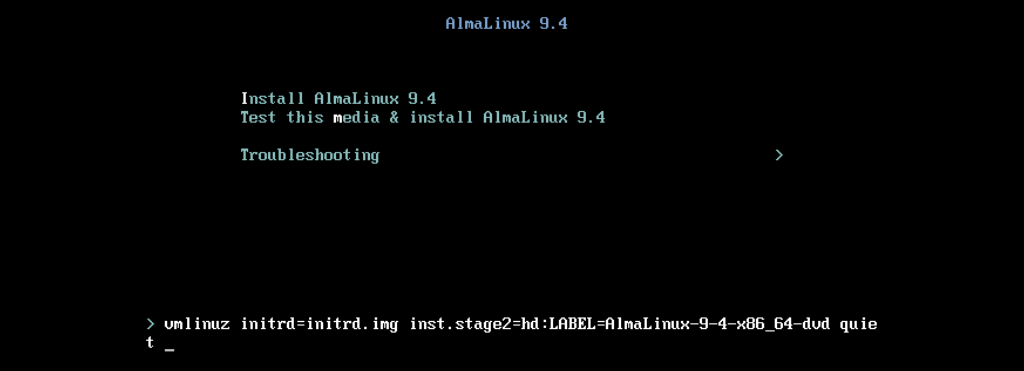
インストーラが起動したら Tab を押します。 すると起動時のカーネルオプションを指定出来るようになります。
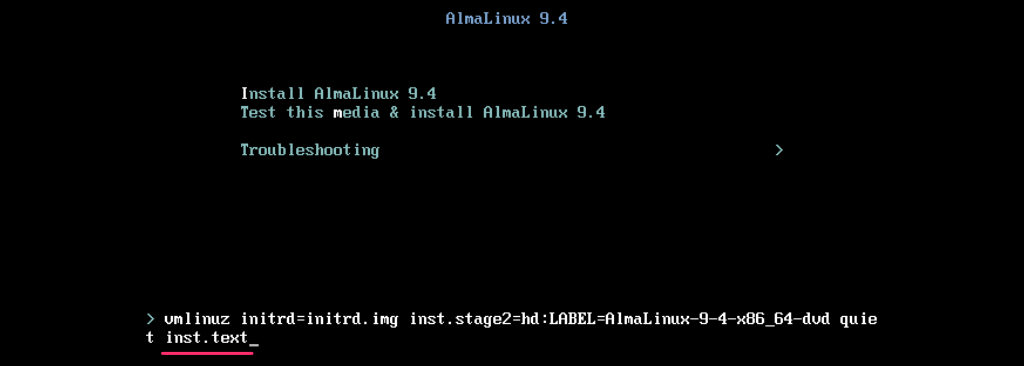
ここに inst.text と入力して Enter を押します。
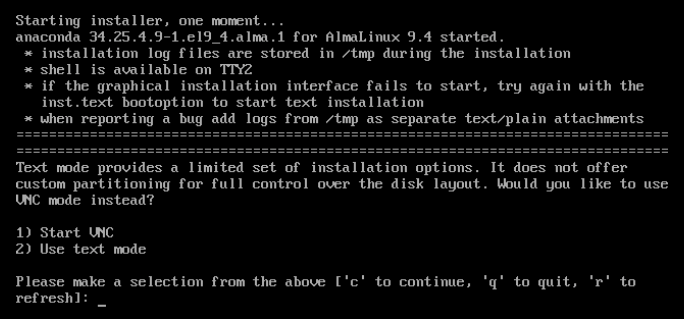
「VNC モードで起動するか?」「テキストモードを利用するか?」を選択するように促されます。 2 を入力します。
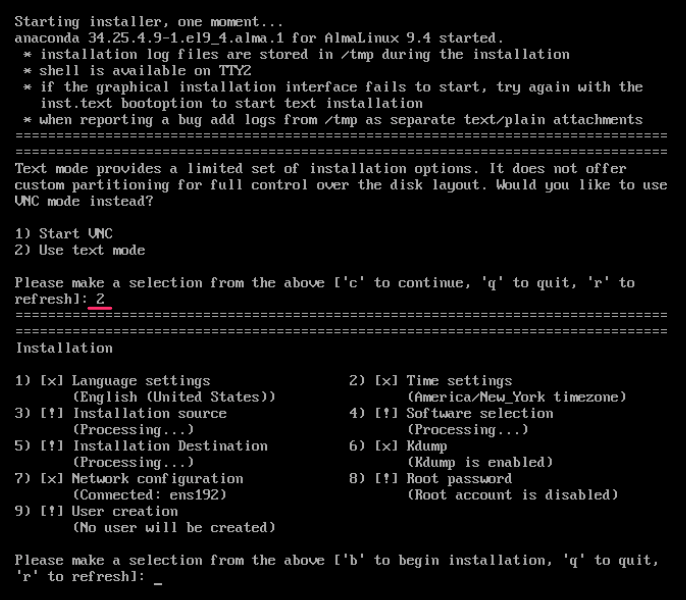
これでテキストモードのインストーラが起動します。
インストールオプション例
詳細は記載しませんが、テキストインストーラでのインストールオプション指定例をメモしておきます。 NTP サーバには time.cloudflare.comのご紹介 で言及されている CloudFlare の NTP サーバを指定しています。 ネットワーク設定はデフォルトのまま DHCP にしていますが、固定アドレスにする場合はインストーラ中で指定してしまうのも簡単です。
2 Time settings→1 Change timezone→2 Asia→ Enter →73 Tokyo→c continue2 Time settings→2 Configure NTP servers→1 Add NTP server→time.cloudflare.com→c continue5 Installation Destination→c continue→c continue→c continue6 Kdump→1 Enable kdump→c continue8 Root password→PASSWORD→PASSWORD→yesb to begin installation→ (インストールが完了したら) Enter
固定アドレスへ変更する設定
固定アドレスに変更する場合は以下のように設定します。
nmcli connection modify ens192 ipv4.method manual ipv4.addresses 10.0.0.1/24
nmcli connection modify ens192 ipv4.gateway 10.0.0.254
nmcli connection modify ens192 ipv4.dns 1.1.1.1
nmcli connection modify ens192 +ipv4.dns 1.0.0.1
nmcli connection up ens192
open-vm-tools をインストールする
仮想マシン上に AlmaLinux をインストールした場合は open-vm-tools をインストールしておきます。